
Typing speed measures how quickly you can type text on a keyboard, expressed in Words Per Minute (WPM). One “word” is standardized as 5 characters, including spaces and punctuation, so typing 250 characters in one minute equals 50 WPM.
Featured Snippet Definition: Typing speed is measured in Words Per Minute (WPM), where one word equals 5 characters. The average adult types 40 WPM, while professional roles typically require 6080 WPM with 95%+ accuracy.
Typing accuracy is the percentage of characters typed correctly without errors. Professional typists prioritise 95% to 99% accuracy alongside speed, because high speed with low accuracy creates more work through corrections and proofreading
Why Typing Speed and Accuracy Matter
The Productivity Multiplier
Think in minutes saved, not just WPM. A 200-word email takes five minutes at 40 WPM. At 80 WPM, it takes just 2.5 minutes. Multiply that difference across ten emails daily, and you save nearly an hour each day.
Over a quarter, that extra hour per day becomes weeks of regained focus. Speed delivers compounding returns when accuracy keeps up.
Professional Competitiveness
Many employers require typing tests as part of recruitment. While 40 WPM meets minimum requirements for general office work, competitive candidates typically exceed requirements by 1020 WPM. For data entry and transcription roles, speeds of 60100+ WPM are often essential.
Cognitive Benefits
Touch typing—the ability to type without looking at the keyboard—frees your mind to focus on content rather than mechanics. Once muscle memory develops, your fingers move automatically, allowing you to concentrate on what you’re writing rather than where the keys are.
Typing Speed Benchmarks by Profession
| Profession | Required WPM | Minimum Accuracy | Notes |
|---|---|---|---|
| Data Entry Specialist | 60–80 | 97%+ | Speed-critical role |
| Transcriptionist | 65–100+ | 98%+ | Medical/legal specialisation |
| Legal Professional | 60+ | 97%+ | Fastest industry average |
| Writer / Content Creator | 60–90 | 95%+ | Productivity multiplier |
| Programmer | 40–60 | 95%+ | Accuracy > speed |
| Customer Support | 60–80 | 95%+ | Chat/email response time |
| Office Worker / Admin | 45–60 | 95%+ | Reports & emails |
| General Population | 35–45 | 90%+ | Everyday use |
Note: WPM (words per minute) and accuracy requirements may vary depending on employer expectations and job complexity.
Typing Fundamentals: The Home Row Technique
Touch typing is the foundation of speed and accuracy. It works through muscle memory—with practice, your fingers learn exactly where each key is and move there automatically.
The Home Row Position
The home row is your reference point. Most keyboards have small bumps on the F and J keys to help you find this position without looking.
Left-hand placement:
– Index finger on F
– Middle finger on D
– Ring finger on S
– Pinky on A
Right-hand placement:
– Index finger on J
– Middle finger on K
– Ring finger on L
– Pinky on ; (semicolon)
Both thumbs rest on the spacebar.
Key Principles
– Always return to home row when not typing
– Keep hands raised with fingers curved down to the keys
– Do not look at the keyboard—this is the most critical rule
– Focus on accuracy first—speed develops naturally with practice
Typing Exercises and Practice Routines
The 10Minute Daily Routine
Minutes 13: Warmup with home row exercises
Minutes 47: Practice problem keys (the ones you miss most)
Minutes 810: Speed test with full sentences
AccuracyFirst Drills
Start with these foundational exercises :
Right-hand home row:
jj kk ll ;; jkj kjk l;l ;l; j k l ;
Left-hand home row:
ff dd ss aa fdf dfd sas asa f d s a
Both hands:
asdf jkl; fdsa ;lkj a lad asks; all ask dad
Progressive Challenges
| Week | Focus | Target |
|---|---|---|
| 1–2 | Home row only | 20–30 WPM, 95% accuracy |
| 3–4 | Top and bottom rows | 30–40 WPM, 95% accuracy |
| 5–6 | Numbers and symbols | 40–50 WPM, 95% accuracy |
| 7–8 | Full sentences | 50–60 WPM, 95% accuracy |
| 9–12 | Speed building | 60–80 WPM, 97% accuracy |
Note: Progress may vary depending on consistency and practice quality. Focus on accuracy first, then gradually increase speed.
Common Mistakes and How to Avoid Them
Mistake 1: Looking at the Keyboard
The Problem: Constantly checking key positions prevents muscle memory formation and breaks rhythm.
The Solution: Use the bumps on F and J to orient yourself. Accept that the first few weeks will feel frustrating—improvement comes with persistence.
Mistake 2: Prioritising Speed Over Accuracy
The Problem: Racing to hit high WPM creates errors that require correction, negating time saved.
The Solution: Follow the rule: do not increase speed until you maintain 95%+ accuracy at your current pace.
Mistake 3: Irregular Practice
The Problem: Occasional long sessions are less effective than daily short practice.
The Solution: 1015 minutes daily beats 2 hours once weekly. Consistency builds muscle memory.
Mistake 4: Poor Finger Placement
The Problem: Using incorrect fingers for specific keys creates inefficiency and strain.
The Solution: Stick to assigned finger zones. Each finger has specific keys it reaches from the home position.
Mistake 5: Neglecting Posture
The Problem: Slouching or incorrect wrist position leads to fatigue and potential repetitive strain injury.
The Solution: Maintain neutral wrist position, feet flat on the floor, screen at eye level.
Ergonomics and Posture for Optimal Typing
Proper Typing Posture
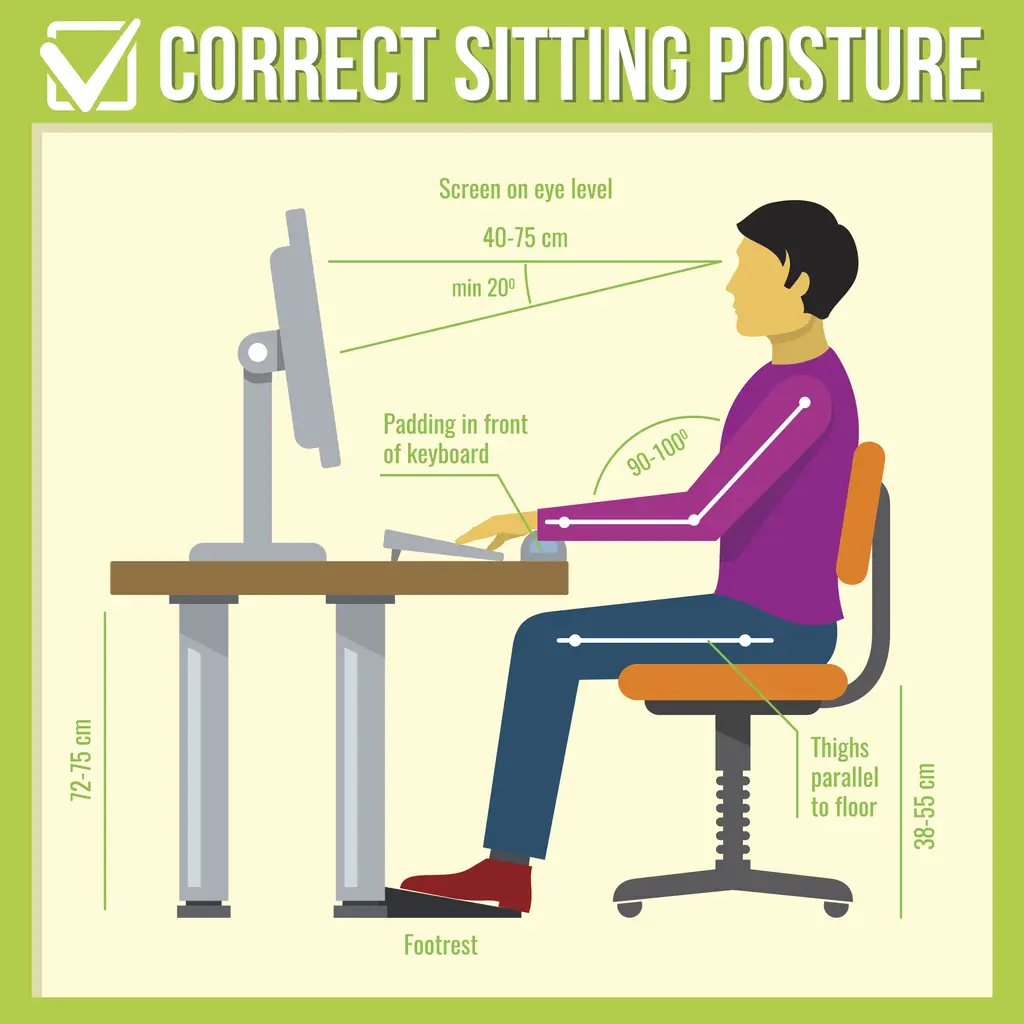
– Chair height: Feet flat on floor, thighs parallel to ground
– Keyboard position: At elbow height, slightly tilted away from you
– Wrist position: Neutral (not bent up, down, or sideways)
– Screen distance: Arm’s length away, top of screen at or below eye level
– Back support: Straight or slightly reclined, lower back supported
Keyboard Considerations
While any keyboard works for learning, mechanical keyboards with tactile feedback can help develop rhythm. Laptop keyboards are fine for practice, though external keyboards often allow better positioning.
Breaks and Recovery
Take a 5-minute break every 2530 minutes of intensive typing. Stretch fingers, wrists, and shoulders. Overtraining decreases alertness and proper technique.
Best Tools and Resources for Typing Practice
Beginner Websites
Typing.com — The reference standard for learning touch typing from scratch. Offers structured lessons, games, and progress tracking. Kids and adults alike find the interface engaging.
TypingClub — Similar to Typing.com with comprehensive free courses. Excellent for school groups or structured learning paths.
Ratatype — Clean interface for learning touch typing fundamentals with certificate options.
Intermediate/Advanced Practice
Keybr — Once you know the alphabet keys, Keybr focuses on your specific mistakes and helps you progress rapidly through targeted practice.
MonkeyType — The ultimate practice tool with customisable options, multiple languages, and detailed statistics. Best for building speed once fundamentals are solid.
10FastFingers — Typing tests and competitions with achievement tracking. Good for benchmarking against others.
Competitive/Fun Options
NitroType — Racing games that make speed practice entertaining, particularly engaging for younger learners or those who enjoy gamification.
TypeRacer — Live racing against other typists worldwide. You’ll start winning races around 50 WPM.
Learn Touch Typing with Professional Training
Course Overview
Professional touch typing training provides structured, expert-guided instruction to transform your typing from hunt-and-peck to fluid touch typing. Whether you’re a beginner starting from scratch or an intermediate typist looking to break through plateaus, comprehensive typing skills training accelerates your progress.
Key Benefits
– Structured curriculum: Progressive lessons from home row through advanced techniques
– Expert feedback: Identify and correct bad habits before they become entrenched
– Accountability: Regular practice schedules ensure consistency
– Certification: Document your typing speed for employers
– Career preparation: Meet WPM requirements for data entry, transcription, and administrative roles
Skills You Will Gain
Upon completion of professional typing speed training, you will be able to:
– Type all letters, numbers, and common symbols without looking at the keyboard
– Maintain 95%+ accuracy while building speed to 6080 WPM
– Use proper finger placement and technique for ergonomic efficiency
– Apply strategies for continuous improvement beyond the course
– Demonstrate certified typing speeds for professional applications
Career Opportunities
Professional typing certification supports roles in:
– Data entry and administration (6080 WPM required)
– Medical and legal transcription (65100+ WPM required)
– Customer support and live chat (6080 WPM required)
– Content creation and journalism (6090 WPM required)
– Software development and technical writing (4070 WPM required)
Conclusion
Increasing your typing speed and accuracy is one of the most valuable productivity investments you can make. The transition from hunt-and-peck to touch typing transforms typing from a mechanical chore into an automatic skill, freeing your mind to focus on content and ideas.
Remember the fundamentals: home row position, no looking at the keyboard, accuracy before speed, and consistent daily practice. Whether you’re aiming for 60 WPM to excel in office work or 80+ WPM for competitive transcription roles, the path is the same—master the basics, build muscle memory, and progressively challenge yourself.
With the wealth of free resources available—from Typing.com for beginners to Keybr and MonkeyType for advanced practice—there’s never been a better time to improve your typing. Start with a baseline test today, commit to 15 minutes of daily practice, and track your progress weekly. Within months, you’ll join the top 25% of typists who can maintain 60+ WPM with professional-grade accuracy.
Frequently Asked Questions (FAQs)
For beginners learning touch typing, 2030 WPM is typical initially. Within 24 weeks of daily practice, most reach 3040 WPM. A “good” speed for everyday work is 5060 WPM with 95%+ accuracy .
With consistent daily practice (15 minutes/day), most people reach comfortable touch typing within 24 weeks. Reaching 60+ WPM typically takes 23 months of dedicated practice. Consistency matters more than duration .
Yes. While external keyboards often allow better positioning, laptop keyboards are perfectly adequate for learning touch typing. The home row technique applies regardless of keyboard type .
To reach 80 WPM: master touch typing fundamentals, practice 1530 minutes daily, maintain 97%+ accuracy, use Keybr or MonkeyType for targeted practice, and be patient—progress typically takes 36 months of consistent training .
Slow down to 80% of your maximum speed, focus on correct finger placement, practice problem keys specifically, and do not advance speed until you maintain 95%+ accuracy. Accuracyfirst practice builds the muscle memory that enables future speed .